Transferring books and progress between Kindles
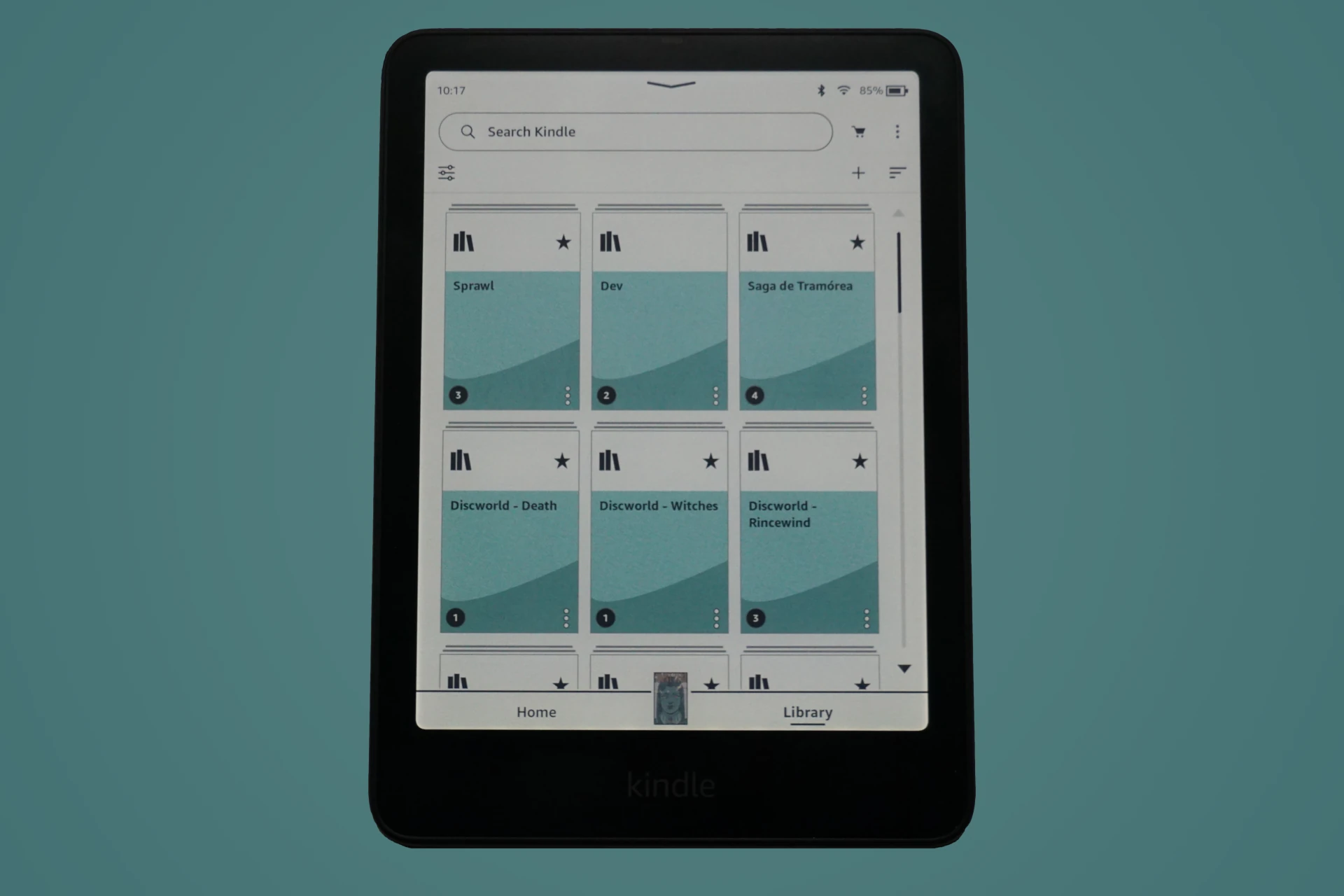
Managing collections is a pain
Kindles offer content and progress sync across devices out of the box, with the caveat that you must use content bought off the Amazon store, or failing that, you must load your content bought from other stores through their “Send to Kindle” email process.
This means that if you use Calibre to manage your library, you’re out of luck when it comes to transferring progress across Kindle devices. Admittedly this is a niche issue. Not many people will have multiple Kindles they switch between with a Calibre-backed library.
I could have just resigned myself to using their “Send to Kindle” process, but you lose metadata like covers, and you are also at the mercy of Amazon’s conversion process, which might or might not mess up your EPUB files.
So since I have jailbroken Kindles, I set out to create a program that can handle transferring books and reading progress between Kindles. If you want to skip to the conclusion, Rekreate is that Go program. In the rest of this article I will go over some Kindle internals and discoveries I made while implementing this.
Sadly this implementation will only ever work on jailbroken devices—content like collections are no longer accessible on non-rooted devices. As of now it is also fairly crude: it won’t do real-time change syncs. Rather it’s more of a backup tool to transfer content between Kindles.
The good news is that even if you don’t have multiple Kindles, this might still come in handy to back up your content, and for future transfers once you upgrade Kindles.
Content structure: Documents
Books—and other documents—are stored under /mnt/us/documents/. Nowadays,
Kindles use MTP when you connect them to a computer. When connected through
MTP, you will only have access to a subset of the total directories and files
on /mnt/us/.
The structure for the documents folder will depend on your organisation method—or tool used. If you use Calibre, it will likely generate a subdirectory with the author’s name where the books will be copied to:
[root@kindle ]$ ls -1 "/mnt/us/documents/Gibson, William/"
Count Zero - William Gibson.azw3
Count Zero - William Gibson.sdr/
Mona Lisa Overdrive - William Gibson.azw3
Mona Lisa Overdrive - William Gibson.sdr/
Neuromancer - William Gibson.azw3
Neuromancer - William Gibson.sdr/
If you have ever looked inside documents you might have noticed these .sdr
directories. These are sidecar directories:
[root@kindle ]$ ls -1 "/mnt/us/documents/Gibson, William/Neuromancer - William Gibson.sdr/"
Neuromancer - William Gibson.apnx
Neuromancer - William Gibsonedafe8ae1ad988b2d502714588513a43.azw3f
Neuromancer - William Gibsonedafe8ae1ad988b2d502714588513a43.azw3r
I am not going to go in-depth into these files. They are proprietary after all, and smart people have already done work reversing what they are for and what they contain. For instance, apnx is “used to store the page numbers as related to a paper version of the book”.
Other smart people have also decoded
azw3f and azw3r files. The f file contains “objects that
change with every page turn such as the last page read and reading timing”,
while the r file contains “less frequently changed data such as personal
annotations, font & dictionary choices, and synced reading position”. From the
KRDS Mobileread post, a Python tool to decode azw3 and other sidecar
files. Source code available on GitHub.
Suffice to say that if we want to transfer our books, we need to transfer both the document and its associated sidecar metadata.
Content structure: Covers
This is where it starts to get tricky if your Kindle is not jailbroken.
Starting from recent Kindles and firmwares, they are restricting access to the
/mnt/us/system/ directory. On my Colorsoft running 5.18.0.1.0.1, this
directory is not even exposed at all through the MTP mount.
If you were trying to manually back up these files, this would be an issue
since covers are stored under /mnt/us/system/thumbnails/:
[root@kindle ]$ ls -1 /mnt/us/system/thumbnails/
## Many lines removed for brevity ##
StoreSearchResults/
StoreWishListResults/
recommendation/
thumbnail_0377e20d-272d-48cc-8cbd-39a70ff2e9e1_EBOK_portrait.jpg
thumbnail_052954e9-fab4-4739-9f8e-9c397e0c51cf_EBOK_portrait.jpg
thumbnail_B09H3W86FD_EBOK_portrait.jpg
thumbnail_B09HN44H5V_EBOK_portrait.jpg
thumbnail_B09HQKRWHH_EBOK_portrait.jpg
thumbnail_Entry:Item:ADC_Entry:Item:ADC_portrait.jpg
If we want to have covers on our target Kindle, we need to back up this directory as well.
Content structure: Catalogue
This is where you need a jailbroken Kindle. Kindles keep a SQLite3 database in
/var/local/cc.db as the source of truth for content. If you want to see the
full schema of this database, I’ve documented it, but I will
go over the relevant subset of tables and columns in this article.
This DB has two tables we need to back up: Entries and Collections.
Entries is a mishmash of pretty much everything. Books are here, collections
are here, other Amazon-exclusive items like series are here, even some extra
things like dictionaries or a feedback page is registered here. Any items that
show up in the Library will likely have an entry here. Even collections will
have an entry here!
Our target for books is p_type='Entry:Item'.
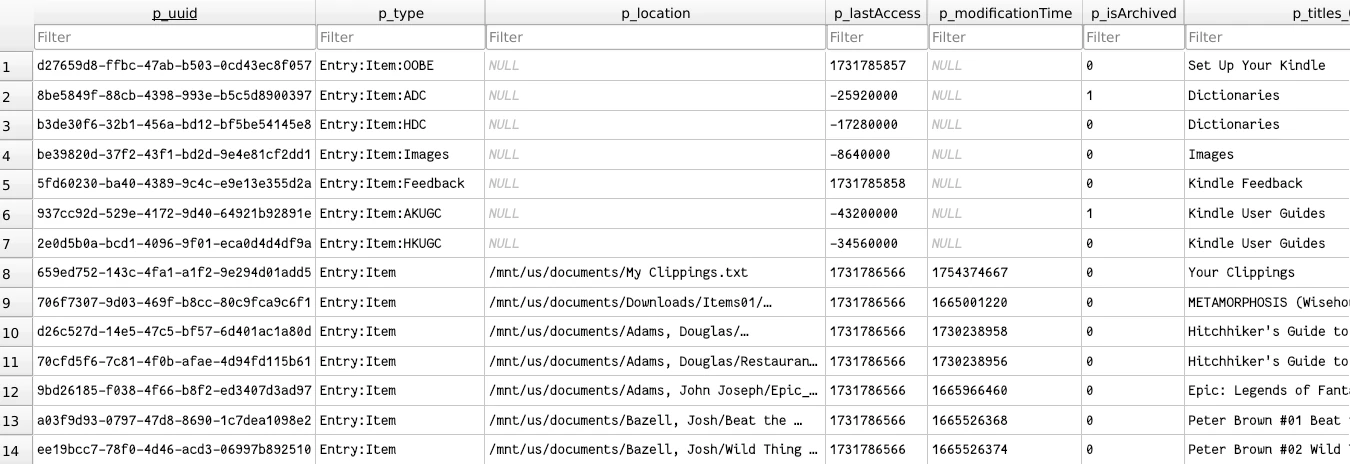
This table has 71 columns
Collections is a N-to-N relationship table, mapping a collection to a book,
as well as the index of that book in the collection. What this means is that,
if you had a collection with 3 books, you would have three entries in this
table.
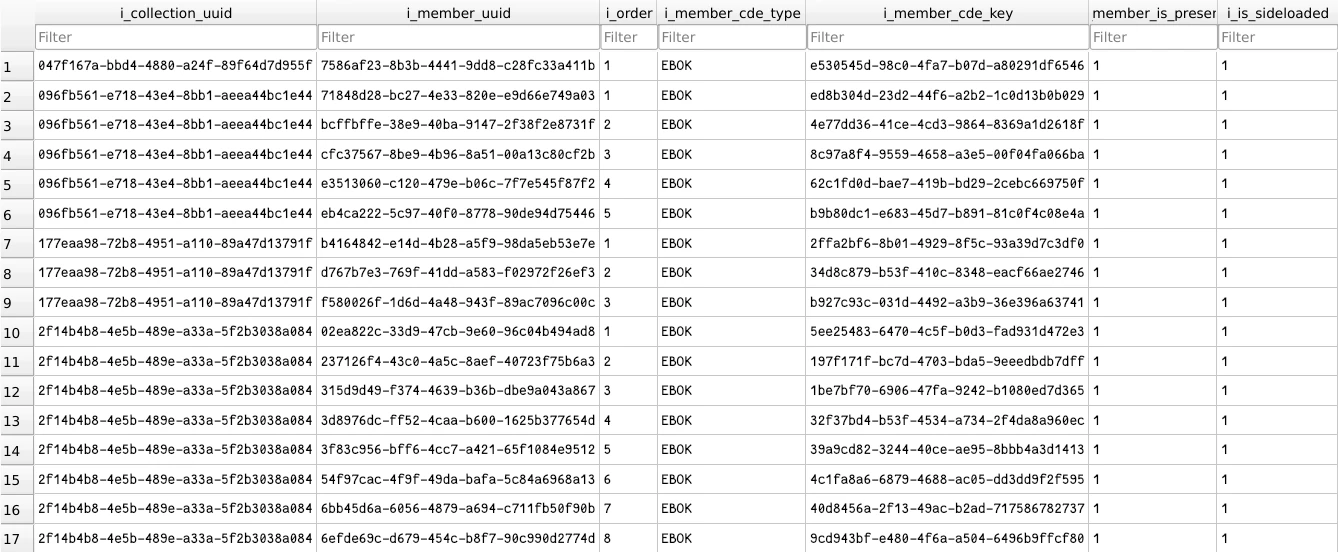
Much easier to showcase
There is some duplication for collections. The collection entry in the
Entries table has a j_members column that will be a JSON array of entry
UUIDs associated to this collection, so you could also fetch member data
directly from the Entries table.
There is also a j_collections JSON array column in the Entries table that,
according to the documentation, would indicate to which collections the entry
belongs to. However, in practice I have never seen this column being used, so
it is likely that going from Entry to Collection is still done through the
Collections table.
One last thing I will mention here is that content in the cloud, whether
downloaded to the device or not, will also show up here. If you wanted to
exclude these files, p_isArchived=1 and p_isVisibleInHome=0 would be the
filters to use.
Catalogue DB: Collections
If you want to back up collections, there is just no way but to go through
cc.db. This data is not stored anywhere else. So first we need to export the
Collections from the Entries table, and then we can export the Collections
table. For the Entries table, we just need to filter by
p_type='Collection'.
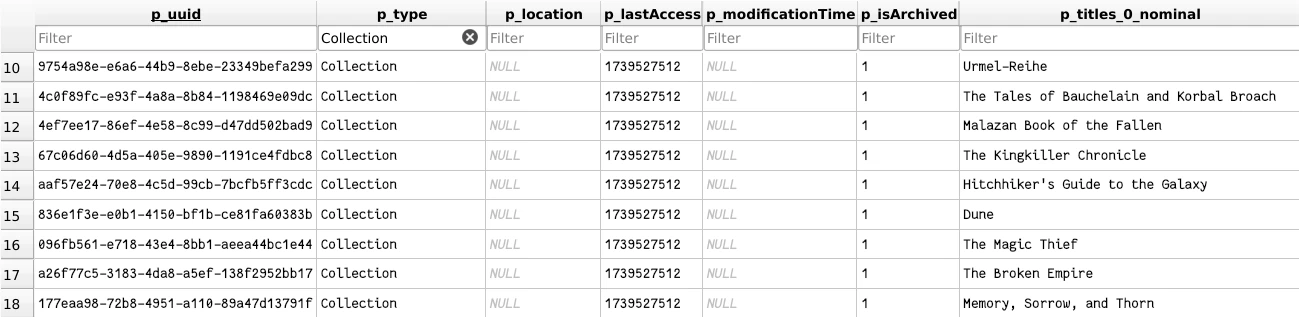
No p_location because they don’t exist on disk
Catalogue DB: Book progress
Book progress is stored in two places: cc.db and the .sdr sidecar files.
If you back up only the sidecar files, a new Kindle will remember the last
reading position once the file is opened, but the homepage menu will show a
“New” or “0%” reading tag on that book until you open it.
This is because that tag is managed through the content catalogue DB. The
Entries table column p_percentFinished will keep track of the current
reading progress in a percentage float number.
If we back up the Entries table, then we can ensure the target Kindle also
gets the proper reading progress tags out of the box.
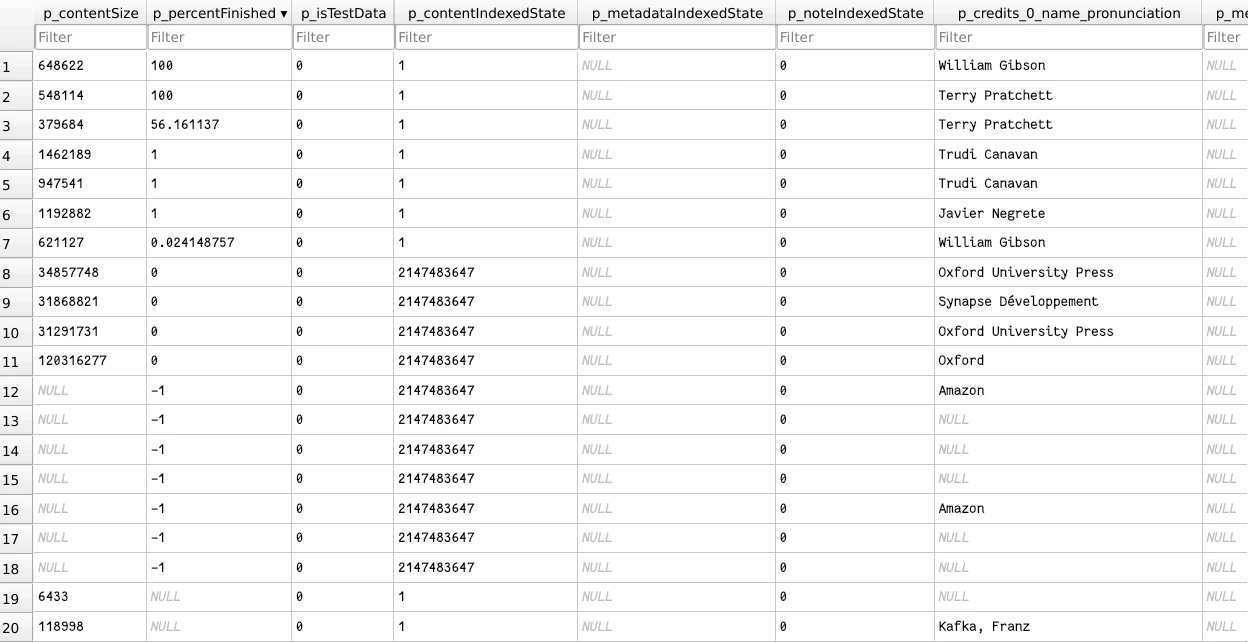
You never know what data type you are going to get
Catalogue DB: Covers
Covers are also related to the Content Catalogue DB. While the images
themselves are stored in the /mnt/us/system/thumbnails/ directory, the
database keeps a mapping of a given book file to a cover file.
When a new book file is added to the /mnt/us/documents/ directory, a process
will parse the file and generate a new row in the Entries table, which will
allow the book to show up in the Library.
As part of this parsing, the thumbnail will also be generated and stored in
the thumbnails directory, and its path will be stored in the p_thumbnail
column of the Entries table. The names of these thumbnails seem to follow
a deterministic scheme, but I haven’t looked into where the UUIDs come from.
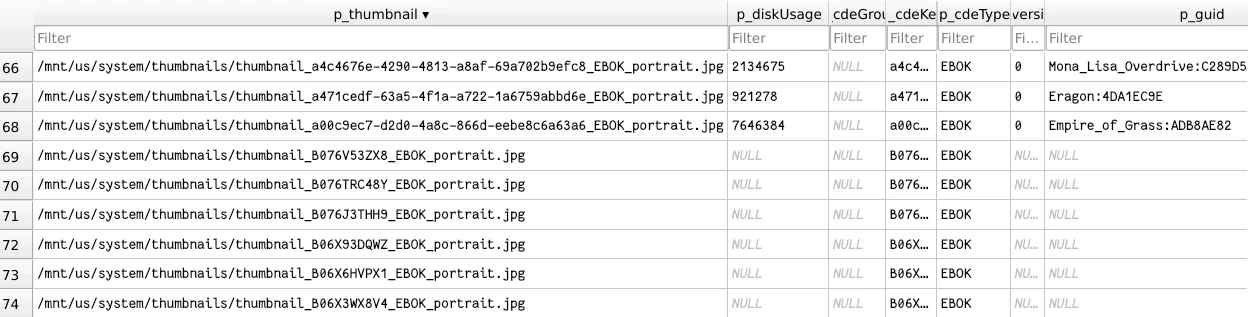
I don’t know what process generates these thumbnails yet
Backing content
Let me then quickly recap what we need to back up, now that I have introduced all the different players:
- Books
- These are under
/mnt/us/documents/. We should back up the book files, as well as their related.sdrsidecar directories. Ideally we can also ignore some content like dictionary files. - Thumbnails
- These are under
/mnt/us/system/thumbnails/. Ideally we can ignore unrelated thumbnails. - Catalogue
- This is in the
/var/local/cc.dbfile. Ideally we can filter out specific books and collections, and also keep the import idempotent.
Rekreate
With these requirements in mind, I set out to create a program to solve the problem. The result so far has been Rekreate. This is a bit of a cannon at this point, but it will transfer books, thumbnails, as well as the catalogue data, from one Kindle to another, in an idempotent way (you won’t get repeated books, collections, catalogue, if you restore the same backup multiple times).
The way it works is fairly simple: it just makes a .tar.gz export with all
the files and the database data. But like with everything, doing this simple
thing required some tricky implementation choices.
Choosing where to start
This might seem simple at first, you have the documents directory, so it is just a matter of getting the books from there, and you can simply use that as your source of truth. But that is where it becomes tricky.
There is not just books in that directory. We have already seen the sidecar
directories, but there is extra content like a My Clippings.txt file and
sidecar, a dictionaries directory with DRM dictionary files, downloaded
cloud files, and we might even have old sidecars from removed books. Things we
don’t necessarily want to back up.
But the main issue: books come in different formats. From azw3, to mobi,
to the newer kfx, pdf, even txt. There is more I am probably forgetting
as well.
Instead, we can make use of the content catalogue DB as our source of truth.
The Kindle already does the work of checking for valid files and extracting
their metadata. When a new file is detected and parsed, it will create a row
in the Entries table, also storing its location on disk. So then it is just
a matter of filtering for all the existing book entries in that table.
SQLite peculiarities
The sqlite3 CLI has
support for exporting and importing data. This allows
you to specify what data you want to export, so it can be used later on in a
partial import. You can even choose to get a text file of the SQL commands
needed to recreate the DB schema and data from scratch. The big issue: this is
a feature of the CLI program.
While the CLI program is installed in Kindles, I am trying to avoid hard dependencies on external tooling.
Thankfully SQLite’s SQL still allows you to do partial exports and imports,
even if it is way more of an involved process. Through
ATTACH DATABASE we can attach another DB—or even
create one in place—to our existing DB connection to the Content Catalogue DB.
You then use the INSERT INTO partial_table SELECT source_table...; syntax to
import data from the CC DB and into our partial DB. The SELECT statement is
feature complete and supports all kinds of filters. With this we can exclude
certain entries, which will end up being necessary as, like I mentioned
earlier, books uploaded to the Amazon cloud—even if not downloaded on the
device—still show up in this DB.
The same ATTACH DATABASE AND
INSERT INTO source_table SELECT partial_table...; SQL can then be used on
the import side to attach the exported partial DB, and to import the data into
the target Kindle’s CC DB.
First issue: cloning the table
This is where I ran into the first problem. Coming from PostgreSQL, I thought
there would be a CREATE TABLE AS statement that
would recreate the table schema and data. No such luck with SQLite. Your best
bet, if you want to re-create a table exactly the same, is to query
the schema table. This will give you the exact SQL
statement used to create the table, as well as any related indexes you will
probably also need.
You can see this technique in action in the
rekreate codebase. You can get the SQL statement, and
with a bit of post-processing, change the source table name for the target
table, which will be something like partialDb.new_table. This will recreate
the whole table schema exactly.
// Fetch the schema
stmt := fmt.Sprintf(`
SELECT sql FROM main.sqlite_schema
WHERE type='table' AND tbl_name='%s';
`, source)

var sqlStmt string
if err := db.db.QueryRow(stmt).Scan(&sqlStmt); err != nil {
	return fmt.Errorf("Failed to get SQL schema of table %s: %w", source, err)
}

// Recreate it under the proper db/name
stmt = strings.Replace(
	sqlStmt, "CREATE TABLE "+source, "CREATE TABLE "+targetDb+"."+target, 1,
)
if _, err := db.db.Exec(stmt); err != nil {
	return fmt.Errorf("Failed to create target table %s: %w", target, err)
}
That still leaves out the indexes, which follow the almost exact same pattern:
// Also clone the indexes
stmt = fmt.Sprintf(`
SELECT sql FROM main.sqlite_schema
WHERE type='index' AND tbl_name='%s' AND sql IS NOT NULL;
`, source)

rows, err := db.db.Query(stmt)
if err != nil {
	return fmt.Errorf("Failed to get indexes SQL of table %s: %w", source, err)
}
defer rows.Close()

var indexes []string
for rows.Next() {
	if err := rows.Scan(&sqlStmt); err != nil {
		return fmt.Errorf("Failed to get indexes SQL of table %s: %w", source, err)
	}

	indexes = append(indexes, sqlStmt)
}

for _, index := range indexes {
	// Add IF NOT EXISTS to the CREATE INDEX or CREATE UNIQUE INDEX statements
	// The schema prefix goes on the index name, not the table name, so also replace here
	stmt = strings.Replace(
		index, "CREATE INDEX ",
		"CREATE INDEX IF NOT EXISTS "+targetDb+"."+target+"_", 1,
	)
	stmt = strings.Replace(
		stmt, "CREATE UNIQUE INDEX ",
		"CREATE UNIQUE INDEX IF NOT EXISTS "+targetDb+"."+target+"_", 1,
	)

	// Replace the ON condition for the target table
	stmt = strings.Replace(stmt, "ON "+source, "ON "+target, 1)

	if _, err := db.db.Exec(stmt); err != nil {
		return fmt.Errorf("Failed to clone index of table %s: %w", source, err)
	}
}
The one quirky thing here is the syntax for telling SQLite on which database to create the index on, but otherwise it is basically the same code.
Second issue: Kindle SF vs HF
If you are new to Kindles, they—since the 11th generation—run on MediaTek chips. That means they run ARM. Additionally, since firmware version 5.16.3, they run ARMHF. This means older firmware versions will run ARMEL (or Soft Float—SF—in the community).
That is already a bit of an issue. It means that if I use C, or a C toolchain and its default dynamic linking, I will need to build two binaries. With pure Go code this is not an issue since we can have a single ARMv7 target and build statically.
However, that only applies until you get to SQLite, which only has an official C API. Thankfully there are a few different SQLite libraries for Go. The most commonly used is mattn/go-sqlite3, however, this is a CGo wrapper over the C library, meaning I would need a C toolchain, so I ruled it out.
There is also modernc.org/sqlite, a CGo-free port of SQLite. It achieves this by transpiling C code into Go, thus removing the C toolchain dependency. I initially started using this library, but in the end due to collations on the Content Catalogue DB requiring the UTF8 extension, and my inability to figure out how to load SQLite extensions with this library, I ended up moving away from it.
Finally I found and settled on ncruces/go-sqlite3. This is likewise a
CGo-free SQLite library. In this case, it uses a Wasm build of SQLite with
wazero as the runtime, and then exposes Go bindings to it. Additionally, it
also supports the UTF8 extension needed to work with the Entries table, so
it was the perfect fit.
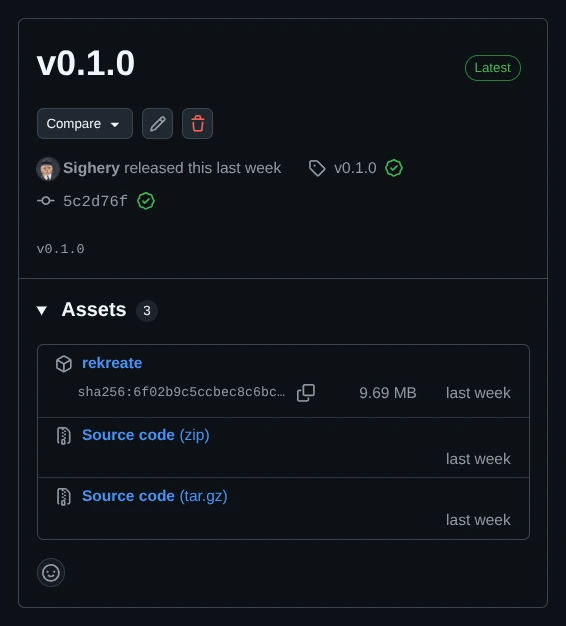
With the one very obvious downside
From Rekreate’s v0.1.0 release
Importing
You would think importing the data from the backup file is then pretty easy, just unpack the books and thumbnails in the proper directory, and copy the DB data.
This is where the first edge case during the import shows up.
Order of imports
If you import books first, that will signal the Kindle’s watches to process the newly added files, which is a waste of time and resources since we already have the processed content catalogue data. We would also like to maintain our UUID and thumbnail references, which might not end up the same if we rely on the target Kindle’s parsing process.
So since we already have the processed data, we start the import process with the Content Catalogue database. If we pre-import the DB data, once we then unpack the books, the file processing program will query the DB, notice the files have already been processed, and exit early.
Importing content catalogue data
For the books, this is pretty easy. There is a column p_location in the
Entries table, indicating the full path on disk of a given book. This column
has a unique index on it, so we can just
run a simple query and have SQL handle the
conflicting cases for us with INSERT OR REPLACE:
cols, err := db.tableColumns(tx, "main", "Entries")
if err != nil {
	return err
}

// Will work due to the unique constraint on the p_location column
stmt := fmt.Sprintf(`
INSERT OR REPLACE INTO main.Entries (%s)
SELECT %s FROM %s.entries_books;
`, strings.Join(cols, ", "), strings.Join(cols, ", "), partial)

if _, err := tx.Exec(stmt); err != nil {
	return fmt.Errorf("Failed to import books from partial entries table: %w", err)
}
If the book already existed in the target Kindle, we just replace its previous entry in the Content Catalogue DB. Easy!
For collections this didn’t work so cleanly, as their p_location column is
empty, they don’t exist on disk. One way to identify a collection is to use
one of its name columns, like p_titles_0_nominal. That means we need a
two-step process. First we insert collections
that didn’t exist. Then we update collections that already existed:
// First insert missing collections
insertStmt := fmt.Sprintf(`
INSERT INTO main.Entries
SELECT p.* FROM %s.entries_colls p
LEFT JOIN main.Entries m
	ON m.p_titles_0_nominal = p.p_titles_0_nominal
WHERE m.p_titles_0_nominal IS NULL;
`, partial)
_, err := tx.Exec(insertStmt)
if err != nil {
	return fmt.Errorf("Failed to import new collections from partial entries table: %w", err)
}

cols, err := db.tableColumns(tx, "main", "Entries")
if err != nil {
	return err
}

var setClauses []string
for _, c := range cols {
	// Skip since this is the condition column
	if c == "p_titles_0_nominal" {
		continue
	}

	clause := fmt.Sprintf(`%s = p.%s`, c, c)
	setClauses = append(setClauses, clause)
}
setSQL := strings.Join(setClauses, ", ")

updateStmt := fmt.Sprintf(`
UPDATE main.Entries
SET %s
FROM %s.entries_colls p
WHERE p.p_titles_0_nominal = main.Entries.p_titles_0_nominal;
`, setSQL, partial)

if _, err := tx.Exec(updateStmt); err != nil {
	return fmt.Errorf("Failed to update collections from partial entries table: %w", err)
}
That just leaves updating the N-to-N mapping Collections table. This one is
also easy due to a unique constraint on the columns i_collection_uuid and
i_member_uuid that match a book to its collection. Again from the
rekreate codebase:
cols, err := db.tableColumns(tx, "main", "Collections")
if err != nil {
	return err
}

// Also will work due to the unique constraint on i_collection_uuid and i_member_uuid
stmt := fmt.Sprintf(`
INSERT OR REPLACE INTO main.Collections (%s)
SELECT %s FROM %s.collections
`, strings.Join(cols, ", "), strings.Join(cols, ", "), partial)

if _, err := tx.Exec(stmt); err != nil {
	return fmt.Errorf("Failed to import collection mappings table: %w", err)
}

// And also clean up old collections that have been updated and their ID has changed
stmt = fmt.Sprintf(`
DELETE FROM main.Collections
WHERE NOT EXISTS (
	SELECT 1 FROM main.Entries e
	WHERE p_type='Collection'
		AND e.p_uuid = main.Collections.i_collection_uuid
);
`)

if _, err := tx.Exec(stmt); err != nil {
	return fmt.Errorf("Failed to clean up old collections: %w", err)
}
Beyond Rekreate
Using Rekreate involves running rekreate backup on the source Kindle,
copying the generated .tar.gz backup file to the target Kindle, and then
running rekreate import backup.tar.gz there.
This is a pretty crude process: it will back up everything, and import everything, with the exception of a few CLI flags that can be used to ignore some books and collections. It can also take quite a while depending on your library size: Kindle CPUs are not exactly the fastest, and some of these devices still come with 512MB of RAM.
In the future I would like to work on a more elegant, more targeted, real-time sync process that doesn’t rely on Amazon’s cloud servers, but instead can propagate through some kind of local-first P2P exchange. That would be a nice excuse to learn about CRDTs, and CDC—Change Data Capture—could be used to detect and queue changes to books, sidecars, thumbnails, and perhaps even the SQLite Content Catalogue DB.